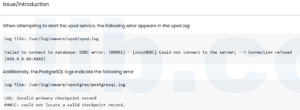

vCenter certificate problems are the kind of issue that usually appears at the worst time. The UI may still load, or it may not. Some services may start, others may fail. You may see certificate warnings, STS errors, vSphere Client login failures, or services stuck after a reboot.
This is not a topic where I like to “just run a script and see what happens.” Before touching certificates, take a few minutes to understand what is expired and make a rollback plan.
First: do not start by replacing certificates
Start with three checks:
- Can you log in to VAMI on
https://vcenter:5480? - Can you SSH to the VCSA as root?
- Do you have a recent file-based backup or a clean snapshot?
If this is a production vCenter, do not rely on a snapshot alone. A snapshot is useful when the VCSA is a standalone VM and you understand the risk, but a proper VAMI backup is still the better rollback point.
Check certificate expiration from the shell
This command is still one of the fastest ways to see what is going on inside VECS:
for store in $(/usr/lib/vmware-vmafd/bin/vecs-cli store list); do
  echo "STORE $store"
  /usr/lib/vmware-vmafd/bin/vecs-cli entry list --store "$store" --text | egrep "Alias|Not After"
done
Look for certificates where Not After is already in the past. Do not only check the Machine SSL certificate. vCenter has multiple certificate stores, and the broken one is not always the one shown in the browser warning.
STS certificate is a special case
If the STS certificate is expired, login and token-related services can break in confusing ways. The old built-in certificate-manager workflows do not handle every STS situation cleanly. This is one reason people started using VMware/Broadcom’s newer vCert tool.
In plain terms: if login is broken, SSO is acting strange, or services fail after restart, check STS before assuming it is only a Machine SSL issue.
Before using vCert
My checklist before running vCert:
- Record the vCenter version and build.
- Confirm whether the VCSA is embedded PSC or external PSC. Most modern environments are embedded, but old ones still exist.
- Take a VAMI backup if possible.
- Take a powered-off snapshot if your change window allows it.
- Export or document current certificate status from VECS.
- Check disk space on the VCSA.
- Make sure DNS and NTP are correct.
Certificate replacement can fail for boring reasons: full partitions, broken DNS, wrong time, or services already half-dead. Fix those first.
Services worth checking
Before and after certificate work, check service state:
service-control --status --all
If many services are stopped, do not blindly restart everything ten times. Read the failing service names. Certificate and SSO issues usually have patterns.
When vCert is useful
vCert is useful when you want a guided workflow for certificate inspection and replacement, especially when the old manual process would involve multiple scripts and certificate-manager menus. It can save time, but it does not remove the need for backups.
I would consider vCert when:
- Machine SSL certificate is expired or close to expiration.
- STS certificate issues are suspected.
- You need a cleaner workflow than manually choosing certificate-manager options.
- You already have a rollback point.
When to slow down
Slow down if:
- vCenter is part of a linked mode setup.
- There are external PSC components.
- Backups are missing.
- DNS or NTP is not healthy.
- You do not know which certificate is expired.
In those cases, the fix may still be simple, but the blast radius is larger.
A practical recovery flow
- Check VAMI and SSH access.
- Create a backup or snapshot rollback point.
- Run the VECS expiration check.
- Check STS if login or SSO is affected.
- Check DNS, NTP, and disk space.
- Use vCert or the appropriate certificate-manager workflow.
- Restart services only when the certificate task has finished cleanly.
- Verify login, inventory, host connection, and backup jobs.
Related notes
Final thought
vCenter certificate recovery is not hard when you know what expired. It becomes painful when you start changing certificates without a backup or without checking STS, DNS, time, and disk space. Do the boring checks first. They are usually what save the maintenance window.


 VM技术助理