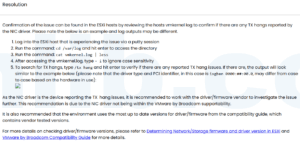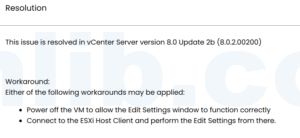

Start with the exact failure mode. On an image-managed cluster, this error is often not a generic network or HA problem. Current Broadcom cases point to three common branches: an old vsphere-fdm VIB that does not match the vCenter build, FDM incorrectly included as a user-managed image component, or a missing FDM VIB in the vCenter Lifecycle Manager depot.
esxcli software vib list | grep -i fdmCompare that result with the vCenter build, then inspect /var/log/vmware/vmware-updatemgr/vum-server/vmware-vum-server.log. Do not remove components or copy VIB files until the log and image validation identify the matching branch. References: Broadcom KB 384913, KB 405960, and KB 342255.
The error Cannot complete the configuration of the vSphere HA agent on the host usually means vCenter tried to configure HA on an ESXi host but failed to install, update, or start the FDM agent correctly. In image-managed clusters, you may also see messages such as setting desired image spec for cluster failed.
This guide gives you a practical troubleshooting checklist before you rebuild the cluster or disable HA blindly.
Common symptoms
- vSphere HA shows a configuration error on one or more hosts.
- The host remains connected to vCenter but HA cannot be configured.
- Recent lifecycle, image, baseline, or patch operations failed.
- Cluster remediation fails with desired image spec errors.
- FDM VIB installation or cache cleanup fails on the host.
Quick checks
- Confirm the ESXi host can resolve and reach vCenter by DNS and IP.
- Check management VMkernel connectivity between hosts.
- Confirm the host is not in an inconsistent maintenance or remediation state.
- Check whether vSphere Lifecycle Manager is using baselines or a desired image.
- Verify there is enough free space on ESXi system partitions.
Check host services
On the affected ESXi host, restart management agents only during a maintenance window or after confirming the operational impact:
/etc/init.d/hostd status
/etc/init.d/vpxa status
/etc/init.d/hostd restart
/etc/init.d/vpxa restart
If HA remains broken, reconfigure HA from vCenter after management services are stable.
Check FDM agent and VIB state
The vSphere HA agent is the FDM component. If the FDM VIB cannot be installed or updated, HA configuration will fail. Check installed VIBs:
esxcli software vib list | grep -i fdm
Also review host logs for FDM and software installation failures:
grep -i fdm /var/log/esxupdate.log
grep -i fdm /var/log/vmkernel.log
grep -i vib /var/log/esxupdate.log
Desired image spec failures
If the cluster is managed by vSphere Lifecycle Manager images, the HA problem may be a symptom of a larger image compliance issue. Check:
- Whether the desired image includes unavailable components.
- Whether the vendor add-on matches the server hardware.
- Whether firmware and driver add-ons are incomplete.
- Whether a previous remediation task failed and left the host in a partial state.
In this situation, avoid repeatedly clicking Reconfigure HA without fixing lifecycle compliance first.
Disable and re-enable HA safely
If only HA metadata is stuck, a safe sequence is:
- Put the affected host into maintenance mode if possible.
- Disable vSphere HA at the cluster level.
- Wait until HA tasks finish.
- Fix lifecycle/image/VIB issues.
- Enable vSphere HA again.
- Reconfigure HA on the host.
When to remove and re-add the host
Removing and re-adding a host should not be the first step. Use it only when host management state is inconsistent and normal HA reconfiguration, agent restart, and lifecycle remediation do not work. Before doing this, document networking, vDS membership, storage, vmkernel ports, and host profiles.
Useful related guides
- ESXi vMotion compatibility guide
- Configure vSwitch teaming and failover with CLI
- Chinese troubleshooting note for this HA error
Summary
For this error, do not treat HA as an isolated checkbox. Check DNS, management connectivity, hostd/vpxa state, FDM VIB installation, lifecycle desired image compliance, and ESXi disk space. Once the underlying host or lifecycle issue is fixed, HA reconfiguration usually succeeds.


 VM技术助理