
When vCenter marks an ESXi host as Not Responding, the tempting answer is to reboot the host. Sometimes that is necessary. Many times it is not.
Before rebooting, spend a few minutes checking whether only vCenter management is broken or whether the host itself is actually unhealthy.
1. Are the VMs still running?
If virtual machines are still reachable on the network, the host may only have a management plane problem. That is very different from a host crash.
Check application reachability, VM ping, monitoring alerts, or storage I/O before making a decision.
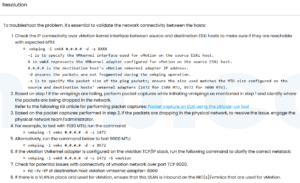
2. Check management network
From another machine:
ping ESXI_MANAGEMENT_IP
ssh root@ESXI_MANAGEMENT_IP
If ping fails, check switch port, VLAN, vmk0, physical NIC, and upstream network changes. If ping works but SSH fails, the host may still be alive.
3. Use DCUI if you have console access
Through iDRAC, iLO, IPMI, or a remote console, check the Direct Console User Interface. If DCUI works, you can test management network and restart management agents without immediately rebooting the host.
4. Restart management agents carefully
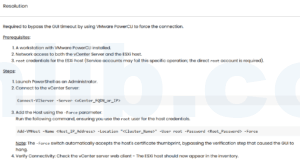
If VMs are running and only management is broken, restarting host management agents may be enough:
/etc/init.d/hostd restart
/etc/init.d/vpxa restart
This may temporarily affect management visibility in vCenter, but it should not power off VMs. Still, do it during a controlled window when possible.
5. Check logs
tail -n 100 /var/log/hostd.log
tail -n 100 /var/log/vpxa.log
tail -n 100 /var/log/vmkernel.log
If hostd is looping, vpxa cannot talk to vCenter, or vmkernel shows storage/device errors, the logs will usually point you in the right direction.
6. Check storage and APD/PDL symptoms
A host may look unresponsive when storage is slow, disconnected, or stuck. Check datastore accessibility from other hosts and look for APD/PDL messages in logs.
7. When reboot is reasonable
A reboot becomes more reasonable when:
- DCUI is frozen or unavailable.
- SSH and hostd/vpxa cannot be recovered.
- VMs are already down or migrated away.
- Storage/device issues require a clean hardware reset.
- You have confirmed impact and have approval.
Final note
Do not treat “Not Responding” as one single failure. It can mean a dead host, a broken management network, a stuck hostd process, vCenter communication failure, or storage trouble. The fix depends on which one it is.



 VM技术助理