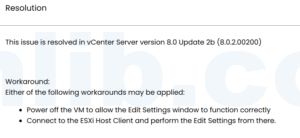

If you are running vCenter Server 8.0 U2 (build 22385739) and cannot edit the settings of a VM with hardware version 9 or lower while it is powered on, you are hitting a known compatibility issue documented in VMware KB 320784. The Edit Settings window opens but renders only empty tabs with red exclamation marks. The fix shipped in vCenter Server 8.0 Update 2b (8.0.2.00200). Until you upgrade, either power off the VM before editing or connect directly to the ESXi host client.
Identifying the Scope
This problem has a narrow footprint. Three conditions must all be true for the issue to occur:
- vCenter Server version: 8.0 U2 (build 22385739)
- VM hardware version: 9 or lower
- VM state: powered on
If any one of these does not apply, you are likely looking at a different problem. Per KB 320784, hardware version 10 and above are not affected.
To identify which VMs in your environment are running older hardware versions, use PowerCLI:
This produces a sorted inventory so you can flag any VMs at version 9 or below before they become an issue during routine administration.
Recognizing the Symptom
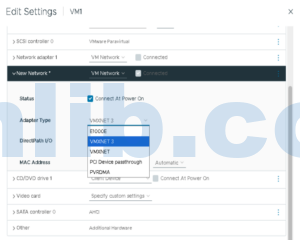
When you right-click an affected VM and select Edit Settings, the dialog opens but something is clearly wrong:
- Only the Virtual Hardware and VM Options tabs appear
- A red exclamation mark icon displays next to the tab names
- The content area below the tabs is completely blank
- You cannot make any configuration changes
This is not a browser rendering glitch or a session timeout. The window loads, but the vSphere Client fails to parse and display the configuration data for the older hardware version while the VM is running.
Why This Happens
According to KB 320784, the vSphere Client in vCenter 8.0 U2 has a compatibility problem with older hardware version configurations. When a VM with hardware version 9 or lower is powered on, the client cannot properly load and parse the VM’s configuration information, which prevents the Edit Settings window from rendering its content.
The key detail is the powered-on state. The same VM, when powered off, can be edited normally through the vSphere Client. This suggests the issue is tied to how the client handles live configuration data for older hardware versions, not the configuration data itself.
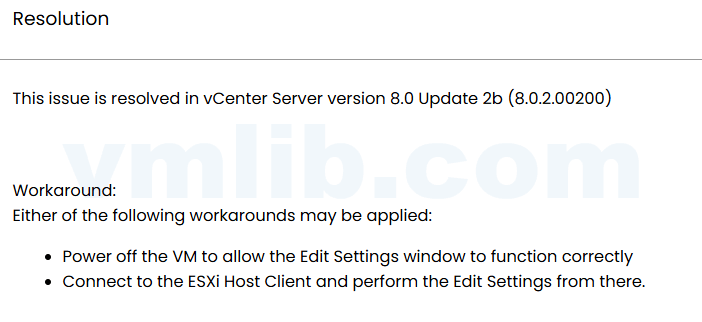
Workaround 1: Power Off the VM
The simplest path is to shut down the VM before editing its settings:
This works because the client can parse the configuration when the VM is not running. The tradeoff is straightforward: you need a maintenance window and the VM must be down for the duration of the edit. If the VM has no flexibility for downtime, move to the next workaround.
Workaround 2: Use the ESXi Host Client
You can bypass vCenter entirely by connecting directly to the ESXi host where the VM resides:
- Open a browser and navigate to
https://<esxi-host>/ui - Log in with the root account
- Navigate to the VM and attempt to edit settings
This approach requires no downtime. The host client handles the older hardware version configuration without the parsing issue seen in vCenter’s vSphere Client.
The downside is operational. In a large environment, you need to know which host the VM runs on, and you are managing outside of vCenter. This is not ideal for repeat operations or environments with strict change control that depends on vCenter task history.
The Permanent Fix: Upgrade to 8.0 U2b
VMware resolved this issue in vCenter Server 8.0 Update 2b (8.0.2.00200). To check your current version, SSH to the vCenter Appliance and run:
You can also check the appliance OS release information:
If you are on 8.0 U2 (build 22385739), plan an upgrade to 8.0 U2b. Plan the vCenter update through the normal appliance backup and change-control process, then verify the affected Edit Settings dialog after the update. Verify that the Edit Settings window now loads properly for affected VMs.
Operational Takeaway
If you are on vCenter 8.0 U2 and need to edit a powered-on VM at hardware version 9 or below, your fastest path is the ESXi host client — no downtime, immediate access. If that is not feasible, schedule a brief shutdown window. Either way, get vCenter upgraded to 8.0 U2b to eliminate the issue entirely, and use the PowerCLI inventory check to identify other VMs at risk before they surface as helpdesk tickets.
Source and review note
Source article: vCenter 8.0U2 编辑旧硬件版本虚拟机设置失败问题. The publication version keeps the documented version scope and workarounds, while removing unnecessary shutdown scripts and unsupported automation suggestions.


 VM技术助理