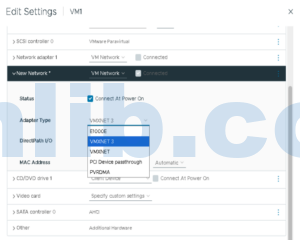


If I am building a current Windows or Linux virtual machine on vSphere, I normally choose VMXNET3. I keep E1000E for a narrower case: an older guest, an installer that does not yet have the VMXNET3 driver, or a recovery situation where broad emulated-device compatibility matters more than performance.
That answer is simple. Changing an existing production VM, however, needs more care than selecting a different item in the adapter menu.
VMXNET3 and E1000E are different kinds of devices
E1000E emulates an Intel 82574-class network adapter. Many operating systems already include a suitable driver, which makes it useful during installation or when VMware Tools is unavailable.
VMXNET3 is a paravirtualized VMware adapter. It is designed for virtual machines rather than imitating a physical NIC. The guest needs a compatible VMXNET3 driver, normally delivered through VMware Tools or open-vm-tools.
| Area | VMXNET3 | E1000E |
|---|---|---|
| Driver | VMware Tools or supported in-box/open-vm-tools driver | Commonly available Intel-compatible driver |
| CPU overhead | Usually lower under load | Higher because the device is emulated |
| Throughput features | Designed for multiqueue, RSS and virtualized offloads | More limited virtual performance model |
| Best use | Modern supported production guests | Compatibility, installation and selected legacy guests |
Why changing the adapter can break the guest network
Replacing E1000E with VMXNET3 creates a new virtual PCI device and usually a new MAC address. Windows may treat it as a new NIC and leave the static IP attached to a hidden old adapter. Linux interface names, NetworkManager profiles, udev rules, firewall zones or application licensing tied to the MAC address may also change.
A safer migration sequence
- Confirm the guest OS and VMware Tools version support VMXNET3.
- Record the IP address, VLAN, DNS, routes, MTU, MAC-dependent licensing and firewall settings.
- Arrange console access; do not depend solely on the network connection you are changing.
- Add a VMXNET3 adapter temporarily and connect it to the correct port group.
- Boot and confirm the driver loads. Move the IP configuration during a maintenance window.
- Test gateway, DNS, application listeners, backup, monitoring and east-west traffic.
- Remove E1000E only after the new path is proven.
VMXNET3 is not a cure for every network problem
If performance is poor, also check host uplink saturation, physical NIC drivers and firmware, vSwitch or vDS policy, MTU consistency, packet drops, guest CPU pressure and receive-side scaling. Changing the virtual adapter will not repair a bad VLAN or an overloaded uplink.
My rule of thumb
Use VMXNET3 for modern production workloads when the guest is supported and properly maintained. Use E1000E when compatibility is the immediate requirement. For an existing VM, treat the change as a network migration, not a cosmetic hardware edit.
Source article: E1000E 和 VMXNET3 怎么选. This version was rewritten for English-speaking vSphere administrators rather than translated line by line.


 VM技术助理