
今天例行升级时遇到一个比较无谓的的问题——在升级 VMware Tools 的时候,从 12.3.0 升级到 12.5.2 失败了,提示需要手动安装 VMXNet3 驱动。查了一下 VMware KB 429119,竟然原来这是 Windows 系统映像损坏导致的问题,这里分享下记录下。
故障现象还原
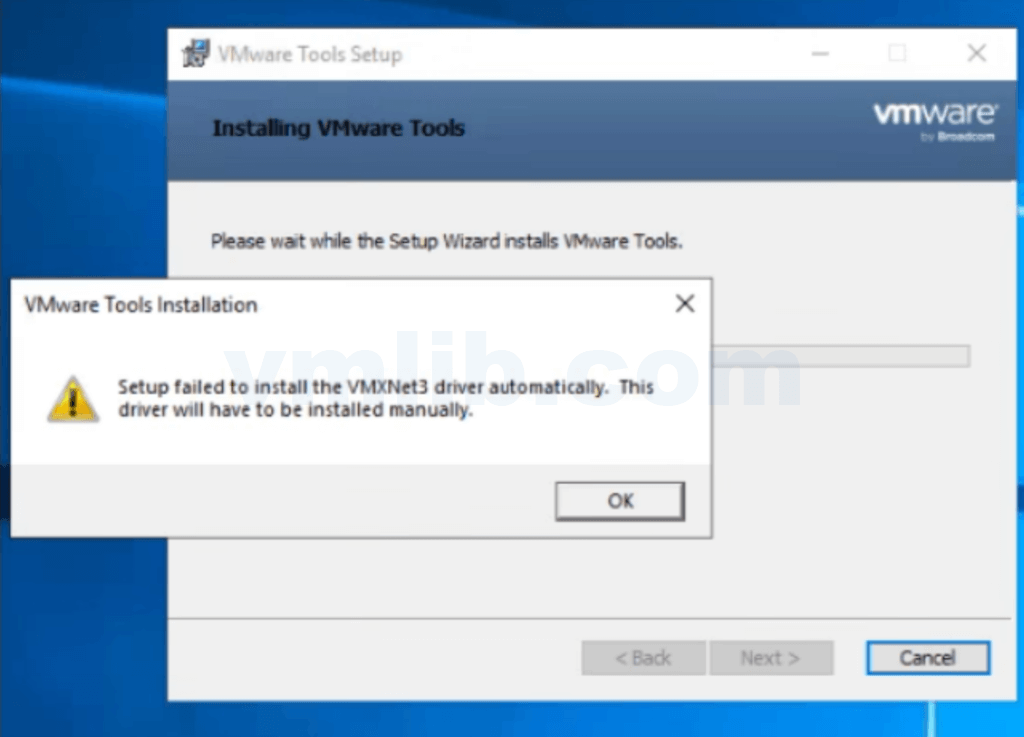
1. 升级失败提示
在虚拟机的 Windows 系统中,VMware Tools 升级过程中会弹出以下错误提示:
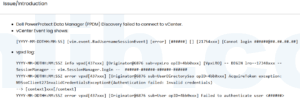
Setup failed to install the VMXNet3 driver automatically. This driver will have to be installed manually.2. 关键日志信息
C:\windows\INF\vminst.log 中的错误:
YYYY-MM-DDTHH:MM:SS | tools-build-24964629| I1: Util_GetKeyValueDWORD: Cannot query key value HKEY_LOCAL_MACHINE\System\CurrentControlSet\Services\vmxnet3ndis6\DeleteFlag| winerror code 2 (The system cannot find the file specified.)
YYYY-MM-DDTHH:MM:SS | tools-build-24964629| I1: PnpDriverManager::InstallPnPDevices: Inf file C:\Program Files\Common Files\VMware\Drivers\vmxnet3\Win8\vmxnet3.inf was installed as oem4.inf (full path C:\Windows\INF\oem4.inf)
YYYY-MM-DDTHH:MM:SS | tools-build-24964629| I1: PnpDriverManager::InstallPnPDevices: Attempting to install HID0: PCI\VEN_15AD&DEV_07B0&SUBSYS_07B015AD
YYYY-MM-DDTHH:MM:SS | tools-build-24964629| I1: PnpDriverManager::InstallPnPDevices: UpdateDriverForPlugAndPlayDevicesW on ID0 (PCI\VEN_15AD&DEV_07B0&SUBSYS_07B015AD) failed| HRESULT code 0x800705b4 (This operation returned because the timeout period expired.)
YYYY-MM-DDTHH:MM:SS | tools-build-24964629| E1: PnpDriverManager::InstallPnPDevices: Failed to install vmxnet3 driver| winerror code 1460 (This operation returned because the timeout period expired.)
C:\windows\INF\setupapi.dev.log 中的超时信息:
dvi:Install Device: Starting device 'PCI\VEN_15AD&DEV_07B0&SUBSYS_07B015AD&REV_01\FF565000F755B4FE00'. 14:38:41.562
dvi:Install Device: Starting device completed. 14:38:41.625
dvi:Device pending start:
Device has problem: 0x38 (CM_PROB_NEED_CLASS_CONFIG), problem status: 0x00000000.
dvi:{Configure Device - exit(0x00000000)} 14:38:41.625
dvi:Device Status: 0x01806400, Problem: 0x38
dvi:Timed out waiting for device post-install to complete. 14:42:26.643
ndv:Device install failed for device.
ndv:Error 1460: This operation returned because the timeout period expired.
核心原因分析
根据 KB 429119 的解释,这个问题的根本原因是:
Windows 系统映像损坏导致 VMXNet3 驱动安装超时
具体表现为:
-
- 无法查询 vmxnet3ndis6 服务的 DeleteFlag 注册表项
- 驱动安装过程超时(0x800705b4 错误代码)
- Windows 系统无法完成网络设备类的配置(0x38 问题)
故障排查与解决方法
1. 检查系统文件完整性
# 在管理员命令提示符中运行系统文件检查器
sfc /scannow
# 如果发现问题,尝试修复
DISM /Online /Cleanup-Image /CheckHealth
DISM /Online /Cleanup-Image /RestoreHealth
2. 检查网络设备配置
# 列出网络适配器
Get-NetAdapter
# 检查网络设备状态
Get-NetAdapter -Physical | Select-Object Name, Status, LinkSpeed
# 检查网络设备属性
Get-NetAdapterAdvancedProperty -Name "Ethernet"
3. 手动安装 VMXNet3 驱动
# 尝试手动安装驱动
# 打开设备管理器(devmgmt.msc)
# 找到网络适配器
# 右键点击 VMware VMXNet3 Ethernet Adapter
# 选择“更新驱动程序”
# 浏览到 C:\Program Files\Common Files\VMware\Drivers\vmxnet3 目录
# 选择对应的操作系统版本文件夹(如 Win8 或 Win10)
4. 检查 Windows 更新
# 检查并安装 Windows 更新
Get-WindowsUpdate -AcceptAll -Install -AutoReboot
预防措施
1. 定期维护 Windows 系统
# 定期运行系统文件检查
sfc /scannow
# 优化系统性能
dism /online /cleanup-image /startcomponentcleanup
2. 备份重要数据
# 定期备份系统和数据
wbadmin start backup -backupTarget:: -include:C: -quiet
# 或者使用 PowerShell 进行更详细的备份
Get-PSDrive
New-Item -Path  -ItemType Directory
Copy-Item -Path "C:\Program Files\Common Files\VMware\Drivers" -Destination  -Recurse
3. 测试 VMware Tools 升级
在生产环境中进行升级前,先在测试环境中进行充分测试:
1. 备份测试虚拟机
2. 测试升级过程
3. 验证升级后的功能
4. 检查是否有驱动问题
常见问题解答
Q:为什么 Windows 系统无法查询到 vmxnet3ndis6 服务的 DeleteFlag 注册表项?
A:可能是注册表损坏或该服务未正确安装。
Q:如何解决手动安装驱动也超时的问题?
A:需要先修复 Windows 系统映像,然后再尝试安装驱动。
Q:这个问题会影响其他网络功能吗?
A:可能会,特别是与网络驱动和设备类相关的功能。
Q:是否需要重新安装 VMware Tools?
A:在修复系统映像后,可能需要重新安装 VMware Tools 才能解决问题。
风险评估
1. 业务影响
-
- 无法完成 VMware Tools 的升级
- VMXNet3 驱动无法正常安装
- 可能影响虚拟机的网络性能
- 可能导致其他网络功能问题
2. 解决方法的风险
- 系统文件检查和修复过程可能会修改系统文件
- 手动安装驱动可能会导致其他驱动冲突
- 重新安装 VMware Tools 可能会影响虚拟机的其他功能
Reference: VMware KB 429119


 VM技术助理