
Early answer: When a vmnic unexpectedly switches during vMotion and you see physical switch port down events plus ESXi redundancy loss alerts, check /var/log/vmkernel.log for TX hang entries. A TX hang indicates the NIC driver/firmware combination is failing under high-throughput conditions, triggering a firmware-level NIC reset that causes the vmnic change and network disruption. The resolution is updating the NIC driver and firmware to a VMware HCL-listed version obtained from the hardware vendor.
Symptoms and Initial Observations
The documented case presents a specific symptom set:
- Physical switch ports report down randomly during vMotion
- ESXi hosts report loss of redundancy during migration
- vMotion may fail outright, or succeed with noticeable network fluctuation
esxtopshows the vmkernel adapter changing its active vmnic mid-migration
In the source case, vmk2 (the dedicated vMotion vmkernel adapter) was originally using vmnic3. During migration, esxtop revealed that vmk2 would suddenly switch to a different vmnic, and this switch correlated with physical network link state changes. Further examination of the vmkernel log revealed frequent TX hang errors—a key clue that narrowed the investigation from a broad network problem to a specific driver/firmware condition.
Distinguishing TX Hang from Normal NIC Teaming Failover
This distinction matters for accurate diagnosis. Normal NIC teaming failover—triggered by a genuine link loss or by configured failover order—is expected behavior. In those cases, the vmnic switch is a response to a network event, and the teaming policy governs which adapter takes over.
In the TX hang scenario, the vmnic switch is not a normal failover event. The NIC driver detects that its transmit queue has stalled, and the driver initiates a firmware-level NIC reset to recover. This reset causes the link to drop, which then triggers the teaming failover. The physical switch port down event and the ESXi redundancy loss alert are downstream effects of the NIC reset, not the original cause. If you treat this as a teaming policy problem, you will spend time adjusting failover orders and uplink configurations without addressing the underlying driver/firmware defect.
Confirming TX Hang in the vmkernel Log
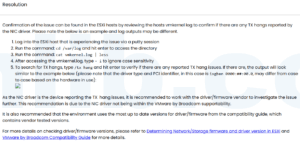
The key diagnostic step is searching the vmkernel log for TX hang entries:
- SSH to the ESXi host
- Navigate to the log directory:
cd /var/log - View the vmkernel log:
cat vmkernel.log | less - Search for TX hang: type
/tx hang(case-insensitive)
The log entry typically resembles:
ixgben 0000:##:00.0: TX hang detected
The exact format may vary by hardware. The ixgben entry in the source case points to an Intel 10GbE NIC using the native ixgben driver, but the same TX hang pattern can surface with other driver/firmware combinations. Note the driver name and PCI address in the log entry—these identify which physical NIC is affected.
Root Cause: Driver/Firmware Behavior Under High Throughput
The confirmed root cause in the source case is at the NIC driver and firmware layer. During high-throughput operations like vMotion, specific driver/firmware combinations expose timing sensitivity or buffer management defects. The NIC transmit queue hangs, and the driver responds by triggering a firmware-level NIC reset. This reset causes the vmnic to drop, the physical switch port to report down, and the vmkernel adapter to fail over to another vmnic in the teaming group.
In the documented case, the evidence pointed below the vSwitch configuration layer. Driver and firmware remediation should be coordinated with the server or NIC vendor and checked against the Broadcom Compatibility Guide. The resolution requires working with the hardware vendor and referencing the VMware Hardware Compatibility List (HCL).
Timeline-Based Troubleshooting Method
Organize the investigation chronologically to correlate events across systems:
Phase 1—Capture symptoms during or immediately after the event:
- Note the exact time of the vMotion attempt
- Record which vmnic was active before the switch using
esxtop(pressnfor the network view) - Record which vmnic became active after the switch
- Note whether vMotion succeeded or failed
- Check the physical switch logs for port down events at the same timestamp
Phase 2—Examine the vmkernel log:
- SSH to the host and run
cd /var/log - Run
cat vmkernel.log | lessand search/tx hang - Correlate TX hang timestamps with the vMotion event time
- Note the driver name and PCI address from the log entry
Phase 3—Identify the driver and firmware versions:
- Run
esxcli network nic listto identify the NIC model and current driver - Run
esxcli network nic get -n vmnicXfor detailed driver and firmware version information - Cross-reference the results against the VMware HCL
- Check whether the current driver/firmware combination is listed as tested
Resolution: Updating Driver and Firmware
The source-recommended resolution path:
- Contact the hardware vendor to obtain the latest driver and firmware for the affected NIC model
- Verify the specific driver/firmware combination is listed on the VMware HCL as tested
- Reference official vendor and VMware documentation to confirm version compatibility
- Apply the update during a scheduled maintenance window
NIC drivers and firmware are not updated through VMware’s standard patching channels. You must obtain them directly from the hardware vendor and follow the vendor’s installation procedure for ESXi.
Production-Safe Checklist
Before applying any driver or firmware update:
- Take snapshots of important virtual machines
- Schedule maintenance outside business peak hours
- Review the hardware vendor’s support forums for reports from other users encountering similar TX hang behavior with the same NIC model
- For critical production environments, test the new driver/firmware version in a non-production or staging environment first
- Confirm host redundancy—ensure other hosts in the cluster can absorb workloads during maintenance
- Document a rollback plan before starting the update
- Verify vMotion compatibility between hosts before and after the update
Operational Takeaway
When vMotion triggers unexpected vmnic switches, do not assume a teaming policy or physical switch problem. The vmkernel log is the fastest path to root cause. If TX hang entries correlate with the vMotion event timestamps, the issue is at the NIC driver/firmware layer—specifically, the driver is resetting the NIC after detecting a stalled transmit queue. Update to an HCL-listed driver/firmware combination from the hardware vendor, validate in a non-production environment first, and apply during a maintenance window with snapshots and a rollback plan in place.
Source and review note
Source article: vMotion过程中vmnic 意外切换:ESXi网络故障深度排查与解决. The reviewed version preserves the TX-hang evidence path and removes generic changes that were not demonstrated by the incident.



 VM技术助理